



About Facebook Ad Creative and Ad Copy
Facebook ad creative and copy Ads are one of the first ad elements that determine the success of a campaign. Depending on the ad creative you use, the CPC (cost-per-click) and CPA (cost-per-acquisition) of different ads can vary significantly. The role of creatives in user acquisition accounts for 75%-90% of ad performance. So you better work on your creatives (creative & copywriting)!
In this article, 313Solution will explain the materials of advertising delivery. The content is relatively simple, but we hope that it will be helpful for attaining best results.
How to Set Up Your Facebook Creative
Firstly, During the campaign creation phase, you can choose from several types of creatives, depending on your campaign goals.
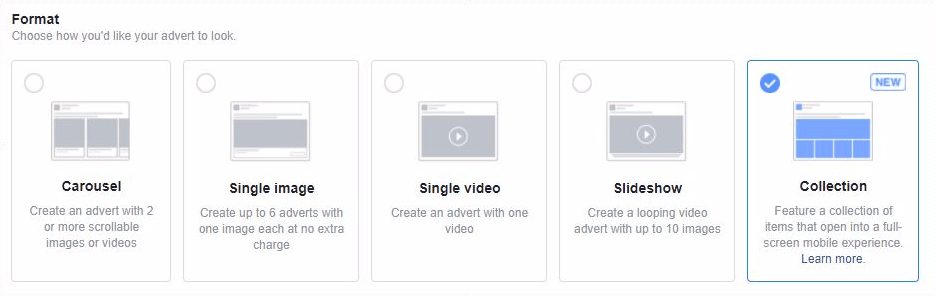
Facebook allows you to select and test up to 6 different image ads to find the best performing option. We recommend that you keep testing some creatives as a great start to your Facebook ad design.
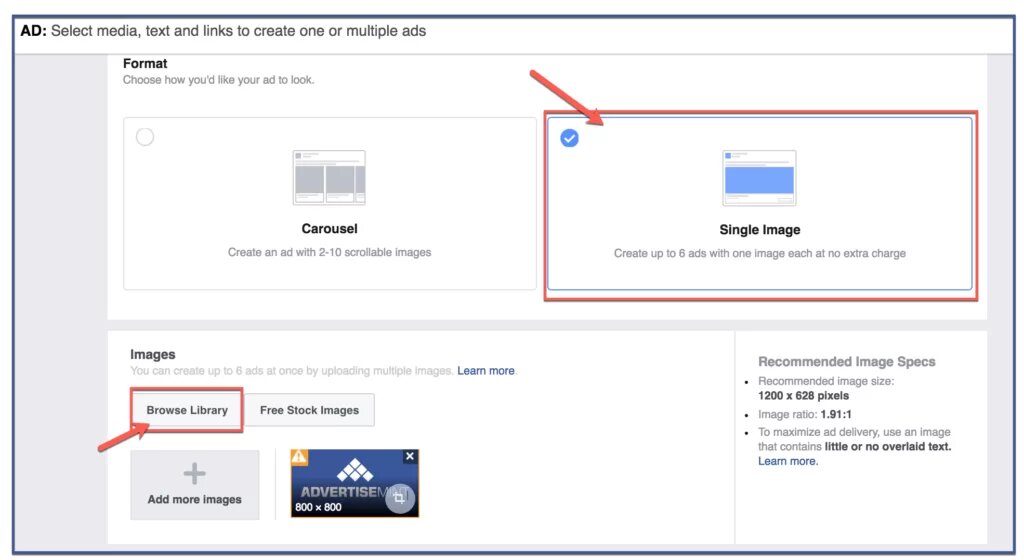
To choose an ad image, you have three options:
- Upload pictures from your computer
- Browse your library to reuse previously uploaded images
- Find images in a database of free stock images
Most newbies will find it very difficult to create advertising materials.
Facebook Creative Best Practices
If you design and deliver your own materials, you must pay attention to the following points:
Make your ads colorful to grab users’ attention instantly.
Put your main value proposition in the ad image so users get it right when they see your ad.
Create an ad that contrasts with the newsfeed
Use the correct image size so your creative will fit well on the screen (see this article for specific sizes ).
Advertising proposal
After the ad image, your ad copy is the second most important part of your Facebook ad. Ad copy should first capture the interest of ad viewers and then convince them to take action, such as making a purchase. Your Facebook ad has multiple fields where you can put text:
- Main ad text – up to 90 characters
- Title – up to 25 characters
- Link description – up to 90 characters
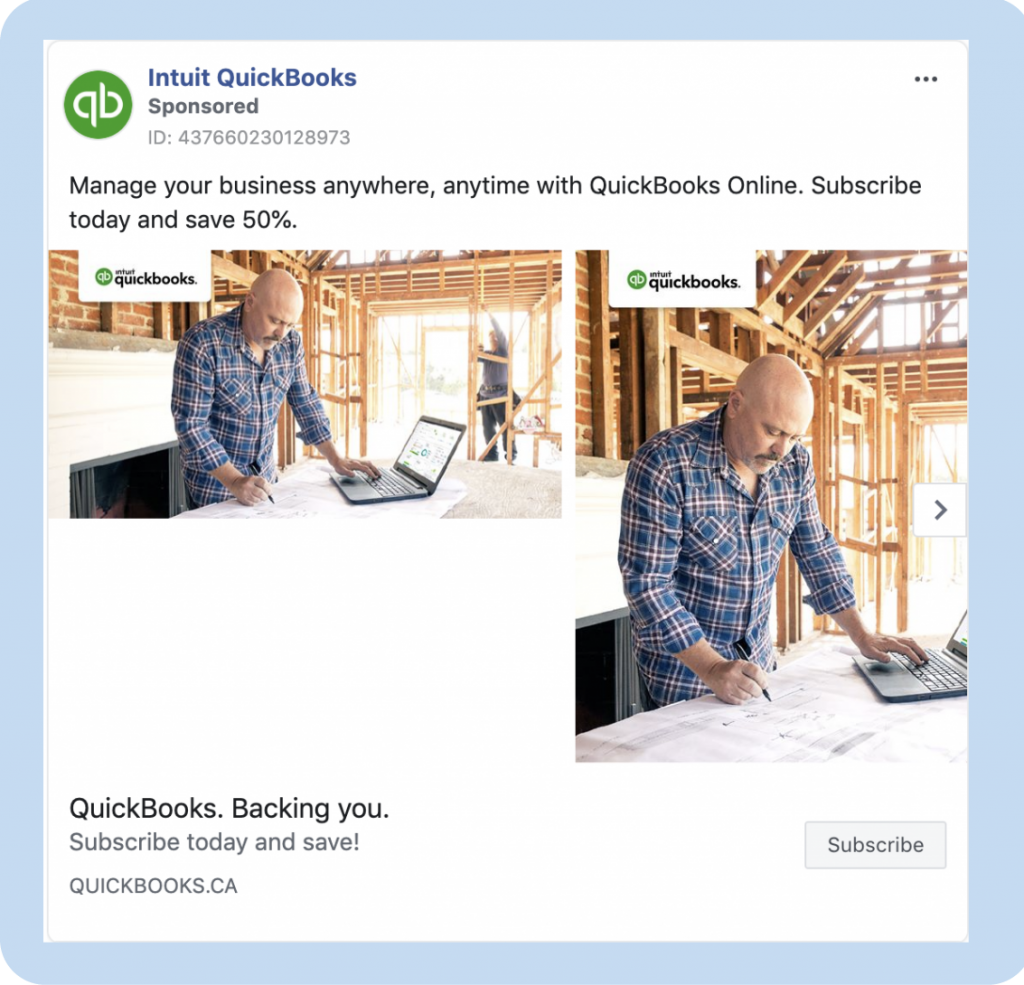
Before you start creating your ad, it’s a good idea to have a few different headlines and descriptions ready. This will make it easier for you to find what you like rather than replenishing on the spot. As you can see, you have more options when dealing with News Feed and mobile ads than the classic right-column ads. First, you can select the “Call to Action” button provided by Facebook. These buttons have proven to be very effective in increasing click-through rates. We strongly recommend using them if they are suitable for your product.
Remember, it’s important to keep your ad copy short and clear. Here, the goal isn’t to sell, it’s to convince users to click on the ad to discover more. Try to be engaging and explain clearly to users why they should click. Offering discounts and freebies often helps, however, be careful not to attract too many worthless clicks that won’t convert.
How to Set Up Facebook Ad Copy
Setting up ad copy is easy, all you need to do is enter text in the field on the right. You’ll also see a preview of your campaign. If you’re testing multiple ad images or want to see how your ad will look on different screens (desktop vs. mobile), you can do so by selecting a different view from the two menus highlighted in the image below.
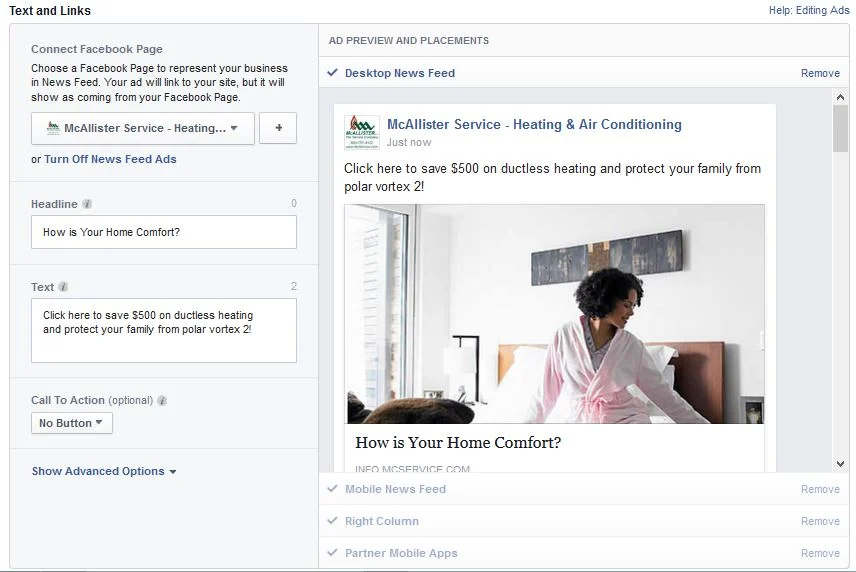
When your Facebook ad appears, you have three options: News Feed, Mobile, and Right Rail.
Many advertisers consider right column ads to be a waste of money because they don’t perform as well as News Feed ads. However, right-side ads are relatively cheap, and you’ll never know which ad type works best for your campaign without testing. I suggest you give it a try.
Another thing to keep in mind is to do mobile targeting. Some advertisers mistakenly send users who click on mobile ads to non-mobile-optimized sites. If your website is mobile friendly, you can only use mobile ads, otherwise you will waste a lot of advertising dollars because Facebook mobile generates a lot of clicks.
Deleting a target is very simple. When you create your ad, you’ll have three tabs to check a preview of your ad in the three available placements. At the end of each placement tab, you’ll have a “Delete” button. Just click it to disable the placement.
Following the prompts, you are now ready to start creating your first Facebook ad! In the next chapter , we’ll explore the different types of Facebook audiences so you can understand how you can target your ads.